Showing posts with label Open Source. Show all posts

Friday, April 29, 2011

Ubuntu 11.04 review


Every one was waiting for Ubuntu 11.04, because of the new Unity interface which is totally different from the Gnome, well Ubuntu 11.04 was just released yesterday and I installed it on my machine so I thought I could write what I think of it:

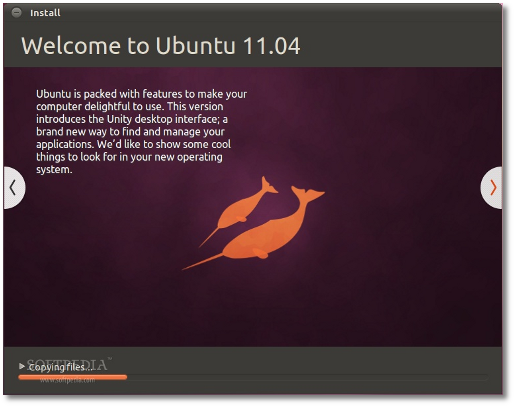
Installation is getting better this version:
  1. The interface is better
  2. Auto detect of existing Ubuntu installation, so you can just upgrade.
  3. Auto detect of existing Ubuntu installation, so you can overwrite it instead of manually choosing the partitions.
  4. Ability to download upgrades and MP3 plugins during installation to save time

A better looking grub loader ( it is not in 10.04 I don't know if it was there in 10.10 or not)

Unity :)

Generally it is just great, I think people were scared that it would not be simple as much as GNOME is or it will have performance issues, but I can tell you it is simple and light.
Still I am not really satisfied with the default applications like Banshee instead of Rythmbox, but it seems like the new Libre Office is better than Open Office, anyway you can install and uninstall whatever you want, you can even remove Unity and install GNOME if you don't like it.

Best thing is that you can access things easily and faster because Unity offers suggestions for you when you open the menu.

Few things I don't like about Unity is that it is not as customizable as GNOME where you could add and edit panels, but I think more developers will provide applets that can be used with Unity.

Ubuntu software center:

You now can review apps and write comments about the applications.


Tuesday, April 19, 2011

Radio Tray


Just found a great application for listening to Internet Radios on Ubuntu

Go there and download it http://radiotray.sourceforge.net/

then you can easily add radio stations to the radio

check this link

Some radios stream using codecs that Ubuntu doesn't support by default so you will have to install them using

sudo apt-get install ubuntu-restricted-extras

One more thing if you have Unity you need to enable the radio tray applet indicator just do as here.

Saturday, May 29, 2010

CStack

I just added a stack implementation in C to the project on source forge, I will change its name but it seems that source forge has some problems with that :D
I will isA add other data structures
Wish me Good luck in my exams !!!

Saturday, May 22, 2010

C dynamic list

I have been following a programming course that is on Stanford University channel on You tube, it's really nice, and I made that implementation of a generic dynamic list in C, I put it on source forge, so you can have look it and tell me if there is any thing wrong with it :)

CList on source forge.

Wednesday, April 21, 2010

Mercurial


Sometimes you miss up your code with some changes that cause it not to work and you are unable to remember what you did or even worse not able to recover what you deleted, that's way their is something called Source Control, this helps you keep different versions of your projects, so you can just move between them without losing any thing, there are many stuff that do Source Control like cvs or svn, any way I came across something called Mercurial which seemed a nice thing to write about.
The guide is really good and simple, but I am gonna explain things little bit more and with some examples.

Installation

You can install Mercurial easily by typing sudo apt-get install mercurial in your terminal if you don't already have it, you also need to create a file name .hgrc in your home directory, Mercurial uses this file as your preferences, so you type your user name, and your preferred editor (ex. nano, vim or emacs).
my .hgrc file looks like this

[ui]
editor = nano
username = Khaled Hady

Creating a Repository

The first thing we need to do is to create a repository which is like telling Mercurial this folder is where I work and I want you to keep tracking any changes that I do.
If you already have a folder where your projects are then you will write two commands, let's say that my project is in a folder called Test in my home directory, and I have only one file "main.c" in it, that I want to keep track of.


I used cd to go to Test folder, then I used hg init to initiate a repository. I typed hg add because I want ALL the files to be tracked, if you want only some files to be tracked use
$ hg add first.c third.c
where first.c and third.c are the files you want to keep track of.
I also used the hg status command to know which files I am following and which I am not.


I used the nano command to edit the main file by adding few lines, then I added a new source file named newFile.c


After that I use hg diff to show the differences between the current version and the data in the files I am tracking, it tells me that there have been changes, so I type hg commit to make a new version that maintains the changes I made, and I am asked to type a comment which is important so I can keep track of my changes.


Now accidently, I changed the "newFile.c" and wrote some stupid code, then I commited the version so now I have two versions (0 and 1), I want my old version back (version 0)


first I will type hg log to see what each commit did in the project (so you must write reasonable words when you write the comment of the commit), then I will type hg update 0, I typed 0 cause I want to go to the first version which is zero, also you can use hg update tip to go to the latest version whatever it is.

Now the files are the same in version 0.


there is also a command called hg identify -n which tells you on which version you are now, if it has the form [num]+ (ex. 3+) this means you made changes to the version number 3 but hasn't commited these changes.


That's for now, there are other commands that we can talk about later.
Wednesday, January 27, 2010

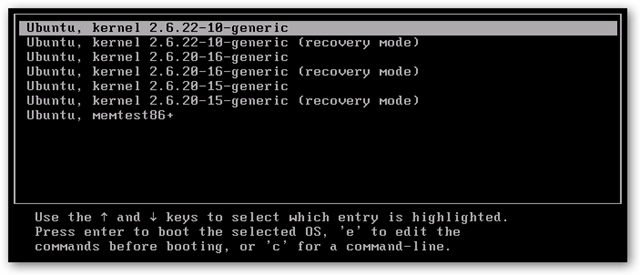
Clean Your Grub !!


If you are an Linux user, you must be familiar with the kernel updates (especially when you download a cut edge version), those updates are important and surely we do them, but the problem shows up when you find your grub full of kernels ( a kernel version + recovery), this happened to me I had 4 kernels with 4 recovery and another memory check, add to that I have Windows 7, so actually I had 10 items in my grub menu which makes it looks like a start menu :D, so I searched for a way to solve that problem, and I found this link ... it's very good, I tried it my self and removed two kernels and left two for safety, just follow the instructions but be careful coz you are missing with your kernel here!!

Sunday, November 8, 2009

Mounting Volumes through terminal


In Linux operating systems, partitions of your hard drive are not mounted when you start, you can mount them easily through the normal file manager, anyway this way is not convenient, let's say that I want to open a recent document in Open Office but I forgot to mount the volume where this file exists, this will cause a file not found error to appear. Another thing that mounting volumes in different order causes different paths, so you have to mount volumes every time you start up and in the same order.

Sorry for so much talking, anyway thanks to shell scripts. you can write few lines to mount all volumes for you.

We will see how to do this:

1 - As you should know, every hardware is represented by a file in Linux file system in the folder /dev , so the first thing we need to do is to know the names of the volumes we are going to mount. We can do this by typing this in the terminal.

sudo fdisk -l


This will show us the partitions, their spaces and their names (sda1, sda2, ...)


2 - Let's say I want to mount the partitions sda1, sda5 and sda7, before I call the mount command I must create a mount point which is a folder under the /media folder in the file system. Through this file I will access the contents of the partition.

3 - We will create the folder using
sudo mkdir /media/anyname


4 - I will mount the partition using
sudo mount /dev/sda1 /media/anyname
Note: Partitions that are mounted through terminal must be unmounted through terminal, so if you want to unmount a partition use
sudo umount /media/anyname


It's better if you delete the mount point using
sudo rmdir /media/anyname

These attached files contain the shell script that I wrote to mount and unmount volumes, of course you will change the names of the partitions (sda#) and make them executable using the chmod command.


Tuesday, October 27, 2009

Installing Qt on My Ubuntu


This week we are assigned to create a simple drawing program using C++, there are different libraries that you can use to develop GUI using C++, any way my friend Abolnour (our open source godfather) advised me to use Qt which is an open source library that enables you to write GUI programs in C++.

The installation process is easy, you have to go to this download page, then choose the LGPL/Free and choose your platform (I chose Linux 32 bit because I am trying to avoid my Vista :D). it's safer and better to dowload the whole SDK whic includes and IDE called Qt-Creator that you can use to create your applications.

After you finish downloading the file (275.4 MB in our case), you will use two lines in the terminal to install every thing.

1 - Navigate to the directory where you downloaded the file using cd

cd /media/disk/Downloads


that's for me (the path will be different for you)

2 - use the command

chmod u+x qt-sdk-linux-x86-opensource-2009.04.1.bin


which makes the file executable.


3 - use the command

./qt-sdk-linux-x86-opensource-2009.04.1.bin


which will run you an installation wizard that asks you where you want to install the Qt-creator
and the libraries.

After that you can use will find the Qt-Creator in the Applications --> Programming, you can use
this tutorial to learn the Qt.

Any way, you may face the silly error I faced when I tried to build a project
the error is
collect2: ld returned 1 exit status
After really turning the Internet upside down, I found that you have to install an extra package using this command

sudo apt-get install libqt4-dev

By the way, the best thing about Qt that it's platform independent although you write it with C++, there is something else
called GTK that you can use.

that's all enjoy Qt !!


Sunday, October 18, 2009

Linux got it all


Many Claim that Linux distributions have very little when it comes to the cool look, well this is absolutely wrong simply because Linux gives you better look than any one else (I mean ... :D). Just check this site it is really great, it contains a huge number of cool looking themes, backgrounds, screen savers, splash screen, screenlets and even more that work on Gnome Desktop. I am sure you can find something for KDE.

Not covinced yet !!! why not use the fancy "compiz" tool, this tool enables you to literaly "Play" with your Desktop, use the Cube to jump between desktops, fire effect and other great things. After you download it from this page, you will find it in System --> Prefrences, you can configure it there to enable the features you need, and you will find the shortcut keys here.

The best thing that normally all of this stuff is for free, safe and easy download like all Free and Open Source products.
ENJOY !

Tuesday, September 1, 2009

First Day

At last Software Freedom Day (SFD) has started !! to day we the organizing team went to college early to prepare thing, we had to get tables, stands and chairs, we also prepared registration lists and hanged the posters. The great thing that people came early and they were excited, actually the number was larger than we expected, we had about 500 registration and about 300 people showed up today, some of them were registered but some made on-site registration.

The day started with an opening that was delivered by Eng.Hamdy Khalil from eSpace, he explained what is Free and Open Source Software (FOSS) and everyone liked it, then they had a 30 minute break to get the program, register their attends and claim their prizes: bags, CDs and pens.

At 12:30, Eng.Mekkawy also known as linuxawy from EGLUG started his session about the Free Software explaining the Main Four Freedoms, he also gave them his email and asked their questions.

Well after that people made some inquiries at the stands and registered for the study groups which actually have so many registered attendees (almost everyone!!).

If you haven't been there today, you missed alot but don't worry you still can come and join us even if you haven't yet registered.

Sunday, August 23, 2009

Getting Close


It's only week before Software Freedom Day !! so we the organizing team made a meeting yesterday discussing what we had done so far and what we should be doing in the coming period. The meeting actually started with bad news about our funding and suddenly we found ourselves having very little time to finish many things, any way after 2 hours of discussion, we found our way out and we made a work plan, each team had a task to finish by night.
Thank God we were able to finish on time because we really want this event to be the best and the biggest in Alexandria.

The speakers in our event differ in their knowledge and backgrounds, we have Eng.Mohamed Sayed from Yahoo!, Abderlahman El KAfil from Morocco, Ahmed Mekkawy from EGLUG and others more.
we have computer security presentations, linux (day to day usage), Open Source and GIS and more, we have also a presentation about Wikipedia along with a stand for the Arabic Wikipedia Team.

So why not register and come with us??
Register here and have the chance of winning one or more of our prizes.

The program is really nice and rich ... check it here

Sunday, August 9, 2009

Just Started !!


First Meeting of Software Freedom Day organizers


The time was 10:00 am and the place was one of the classes of Computer Science Department (CSD), Faculty of Engineering, Alexandria University, the event was the kick off meeting of Software Freedom Day @ Alexandria University.

Let's talk about the event it self before we talk about the meeting, it is a two week event that is intended to start at 1st September 2009. The event targets every one, its main goal is not only to introduce Free Software to people but also to give them the real life experience gained by others who started using Free Software and joined Open Source communities along ago.

The Event will mainly consist of presentations and demos covering wide range of topics,
stands providing on site information and installtion, study groups and contests along with other things, so it seems that we have lots of things to do in the coming month, and you have the chance to enjoy two weeks of Free Software Mania.

Back to the meeting, it lasted for about two hours and was started by each one introducing him / her self, then Ahmed Saeed who is the head of coordination team told us everything about the event and explained to us the tasks we should be doing for the coming month. Teams were created and will be led by four coordinators: Ahmed Abd Al Aziz, Asmaa El Sayed, Yasmin Mohammed and Abd Rahman Gamal who all have previous experience in organizing many similar events.

Come and join us, you will enjoy your time and get great knowledge which may change your life forever or at least the technology you use in your daily life.

You can find more information here and you can join our group on facebook.

Check the blog and the facebook group for updated news about the event, See you all there !!